



How to Reduce Lag in Roblox and Play Without Crashing

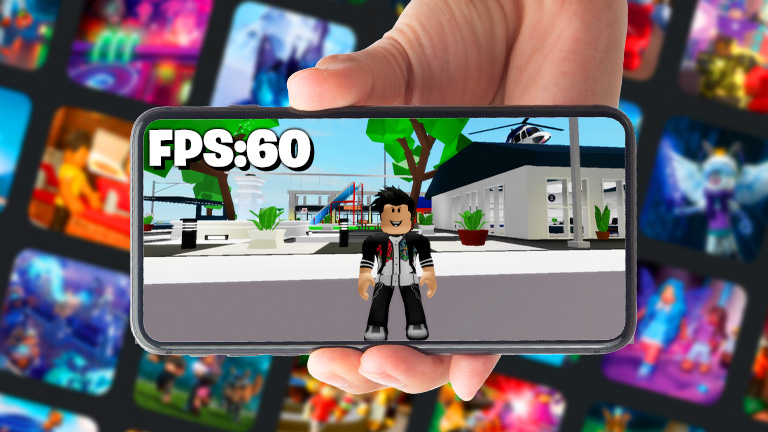
If you play Roblox on your cell phone and are experiencing lag and crashes, know that this is more common than you might think. The good news is that there are several ways to improve your game's performance and ensure a smoother experience. Let's break down the steps you can take to optimize Roblox on your mobile device.
1. Disable unnecessary phone functions
Many cell phone functions, such as Bluetooth, GPS and even mobile data, consume resources that could be used to improve Roblox's performance. That's why it's advisable to disable everything that isn't essential while you're playing.
- How to do itGo to your phone's quick settings menu and turn off all the features you don't use. Only keep Wi-Fi on.
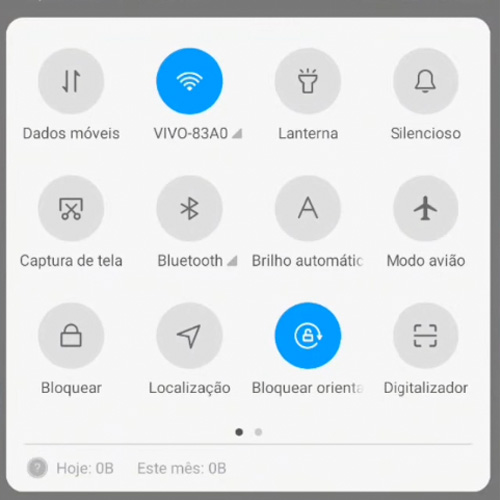
This simple action can significantly reduce the load on your phone's processor, freeing up more resources for the game.
2. Clear the Roblox cache
The cache is a temporary memory that stores data that can help the application load more quickly. However, if the cache is too full, it can end up hindering the game's performance.
- Steps to clear the cache:
- Go to your phone's settings.
- Select "Apps" or "Application Manager".
- Find the Roblox app.
- Click on "Storage" and then "Clear Cache".
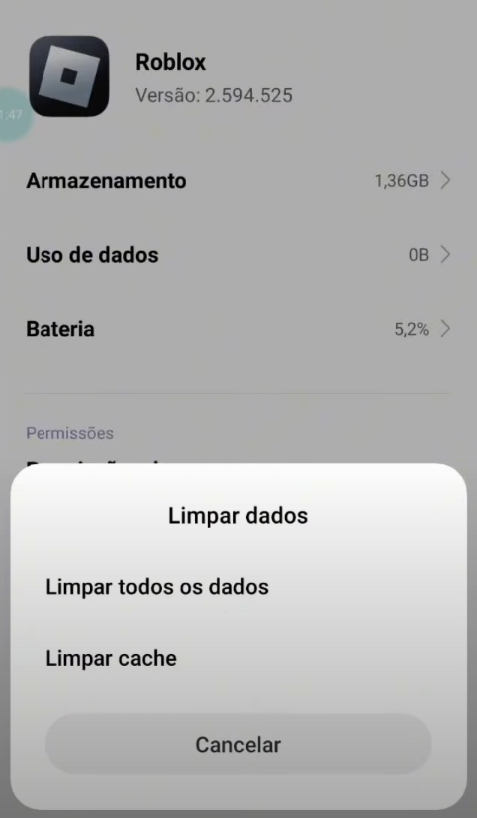
Clearing the cache regularly prevents the game from accumulating unnecessary data, making it lighter and faster.
3. Adjust the Game's Graphic Settings
One of the most effective ways to reduce lag in Roblox is to adjust the graphics settings. By default, the game may be set to automatically choose the graphics quality, but this is not always the best option for all devices.
- How to adjust the graphics:
- Open Roblox and enter any game.
- Go to settings (gear icon).
- Find the "Graphics" option and switch it to "Manual".
- Reduce graphic quality to a minimum.
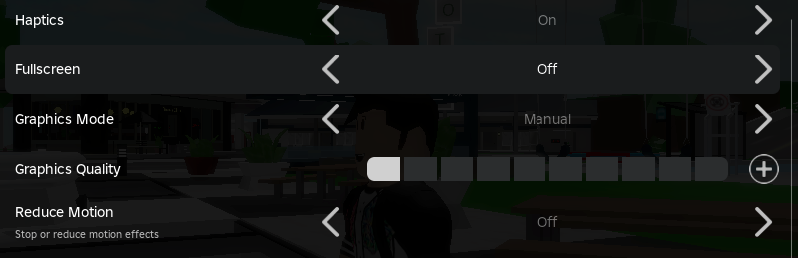
By reducing the graphics quality, the game places less demands on the phone's processor and memory, resulting in fewer crashes and more stable performance.
4. Manage Notifications from Other Apps
Constant notifications from other apps can interrupt your game and even cause more lag. Disabling notifications from apps you don't need while playing can help.
- Steps to disable notifications:
- Go to your phone's settings.
- Look for the "Notifications" section.
- Disable notifications from applications you don't need while playing.
This ensures that your phone isn't overloaded with alerts while you're playing, improving the fluidity of the game.
5. Free up space in your phone's storage
If your phone's storage is full, this can directly affect the performance of Roblox and other games. Deleting unnecessary files can help a lot.
- Tips for freeing up space:
- Delete videos, photos and audio you no longer need.
- Remove apps you don't use often.
- Transfer files to a cloud service or an external storage device.
With more space available, your phone's operating system can operate more efficiently, which translates into better game performance.
6. Delete useless games and apps
Keeping too many apps installed on your phone, especially those you don't use, can take up valuable memory and resources. Deleting these apps can help improve Roblox's performance.
- How to do it:
- Go to your phone's settings.
- Go to "Apps" or "Application Manager".
- Identify and uninstall apps you no longer use.
This not only frees up storage space, but also reduces the number of background processes, allowing Roblox to run more smoothly.
7. Activate Developer Mode and adjust Game Driver Preferences
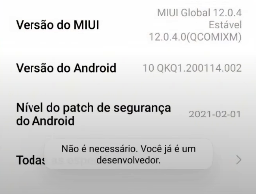
If you use an Android phone, especially Xiaomi models, you can activate developer mode to adjust advanced settings that can improve the game's performance.
- How to activate developer mode:
- Go to "Settings" > "About Phone".
- Tap the "MIUI Version" (or "Build Number" for other devices) repeatedly until developer mode is activated.
Conclusion
By following these tips, you'll be able to reduce lag in Roblox and have a much smoother gaming experience. Remember to adjust your phone's settings regularly and keep your device clean and tidy. This will not only help Roblox's performance, but will also ensure that your phone works better in all situations. If you try out these tips and notice improvements, share them with your friends and enjoy having fun without crashes!